
Skip to content
  • There are no suggestions because the search field is empty.

Custom Field Category Configuration (Device & Service Only)

This guide will show you how to Configure Custom Device Fields in Mobile Lifecycle Dashboard


 1. Click on Settings dropdown trigger 

Click on dropdown trigger


 2. Click on Portal Settings

Click on Portal Settings


 3. Click on Custom Fields

Click on Custom Fields


 4. A. Click on Device

   B. Click on Device Custom Fields
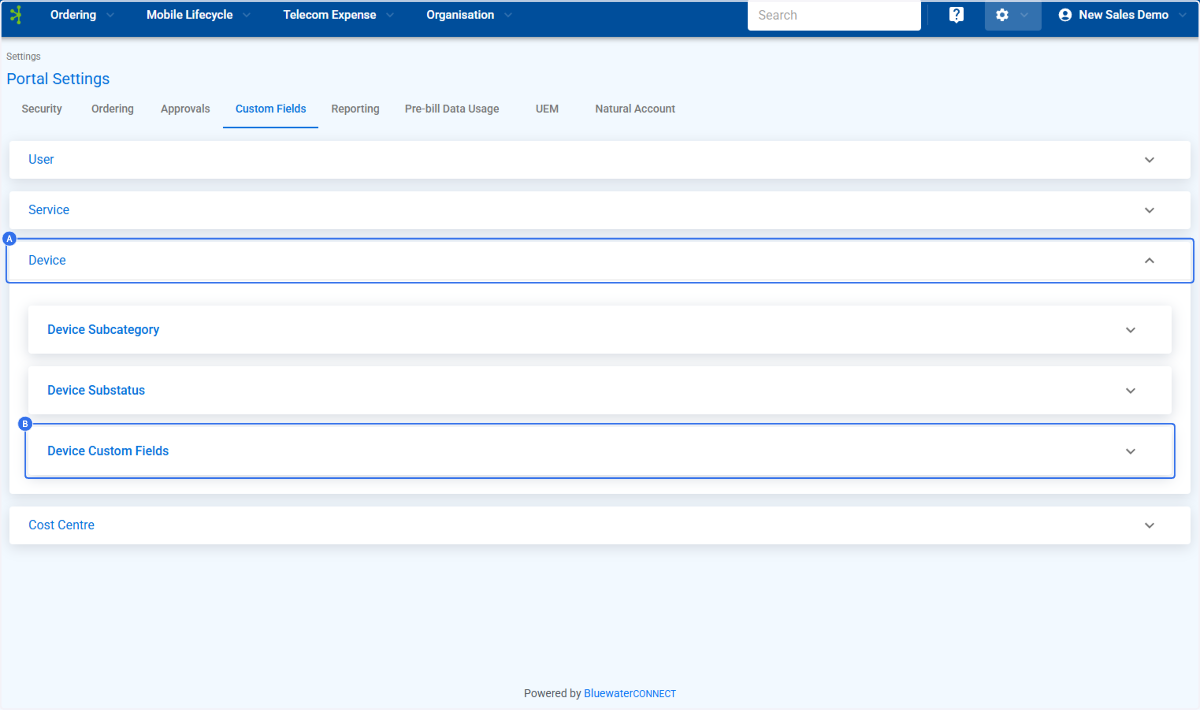
A. Click on Device
B. Click on Device Custom Fields


 5. Click on Edit to open the panel in Edit mode

Click on Edit to open the panel in Edit mode


 6. Click on Add Another Custom Field or Navigate to an existing one to change its category applications

Click on Add Another Custom Field or Navigate to an existing one to change its category applications


 7. A. Type Display Name

    B. Type API Name
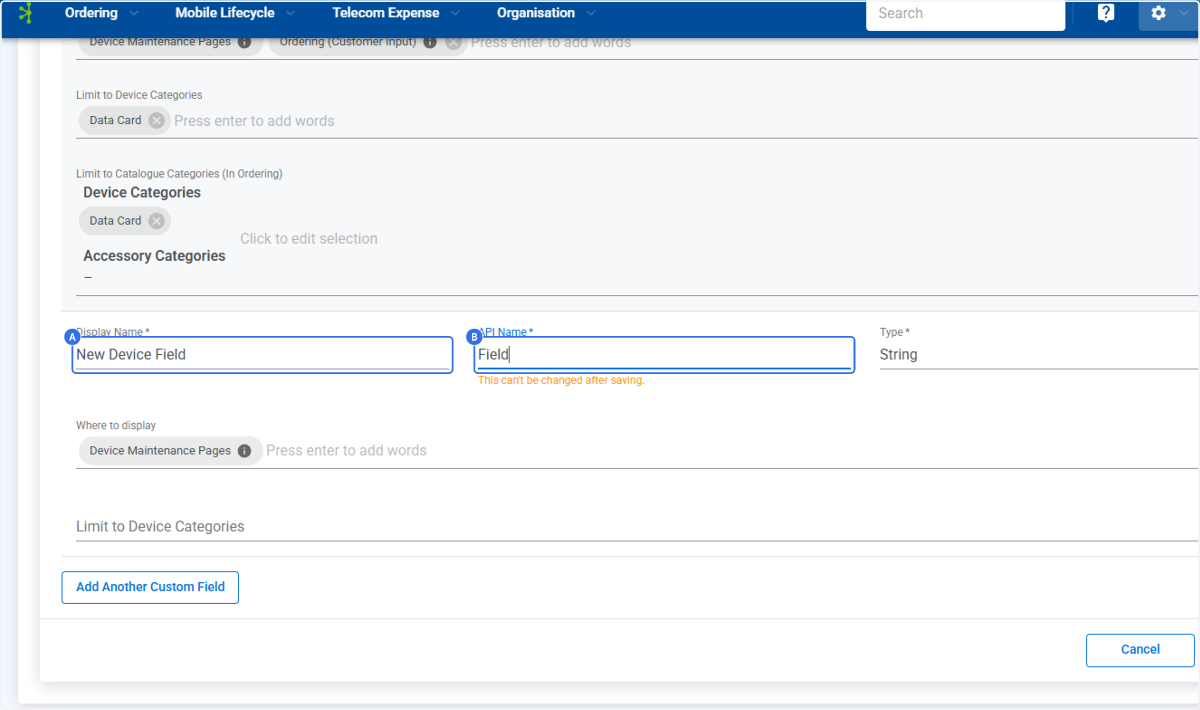
A. Type Display Name
B. Type API Name


 8. Click on Type

Click on Type


 9. Select 'Where to display' to choose where you want these fields to be editable or display in the portal UI

Select Where to display to choose where you want these fields to be editable or display in the portal UI


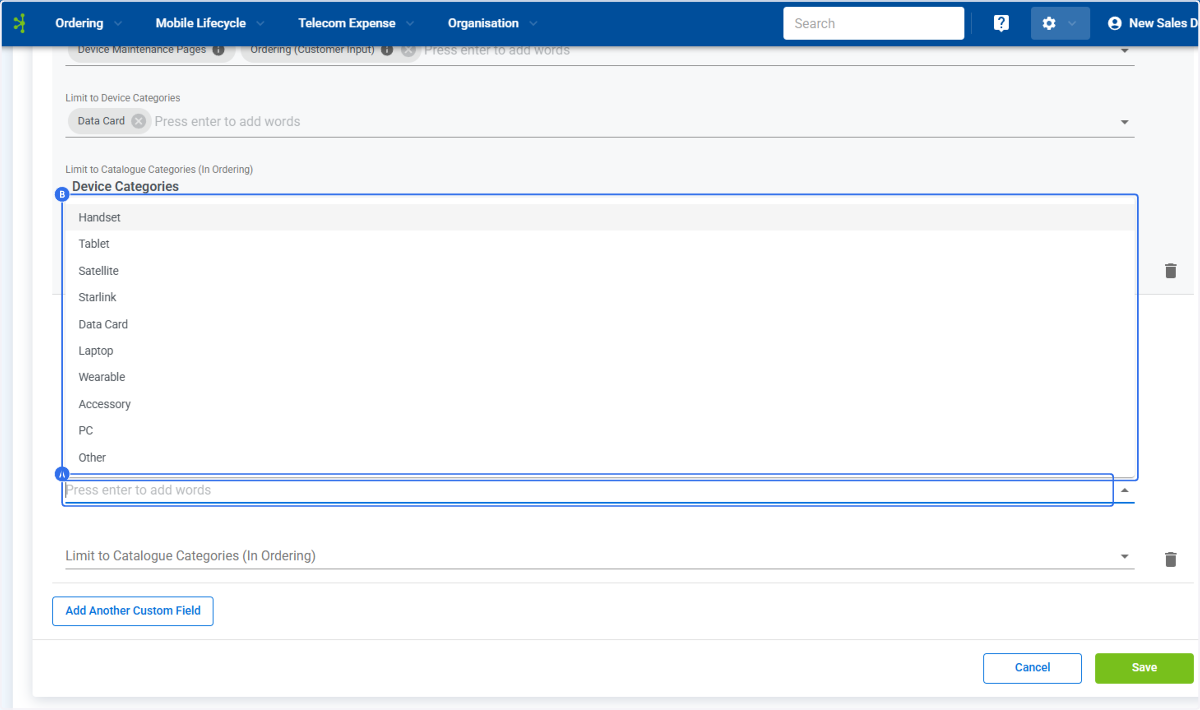
 10. A. Click on ''Limit to Device Categories'' to choose which categories in device         management/device profile you wish this field to display (instead of on all)

     B. Select Limit to Device Categories

A. Click on ''Limit to Device Categories'' to choose which categories in device management/device profile you wish this field to display (instead of on all)
B. Select Limit to Device Categories
 

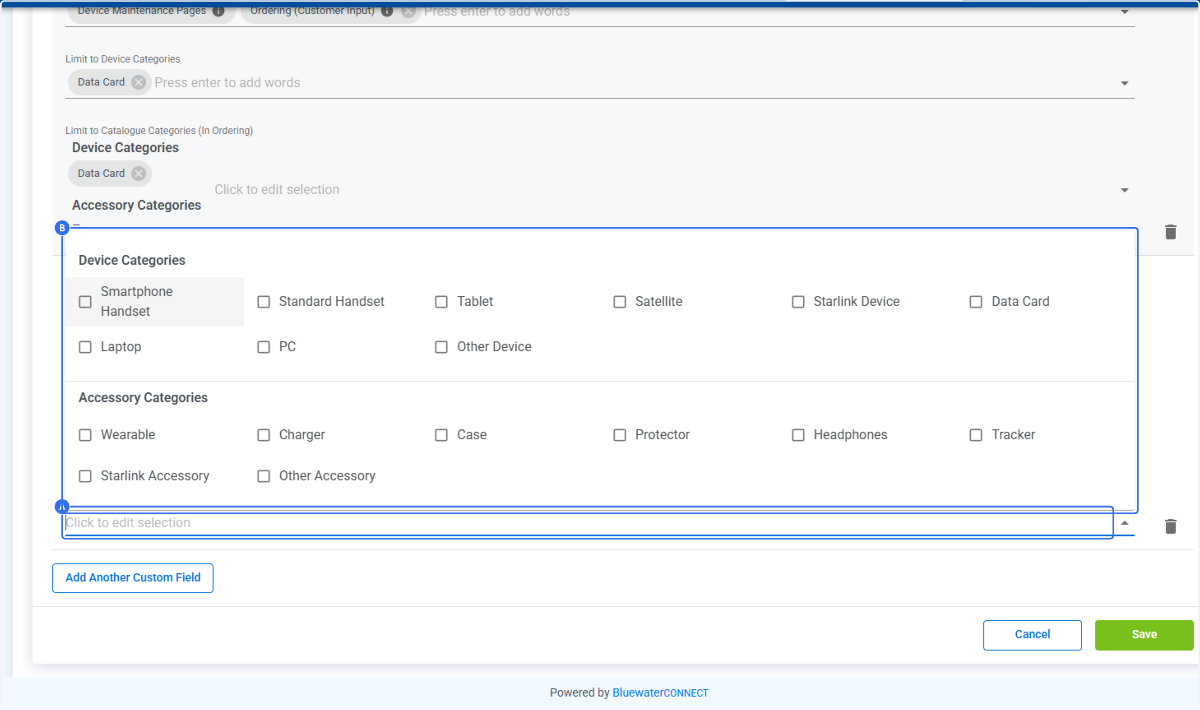
 11. A. Click on ''Limit to Catalogue Categories'' to choose which categories in ordering  you wish this field to display (instead of on all)

     B. Select Limit to Catalogue Categorie…

A. Click on ''Limit to Catalogue Categories'' to choose which categories in ordering you wish this field to display (instead of on all)
B. Select Limit to Catalogue Categorie…
 

 12. Click on Save to apply your changes, these will take effect immediately in all selected locations.

Click on Save to apply your changes, these will take effect immediately in all selected locations.