
Click on MSP

Select the required Tenant (Demo portal used for this guide)

Click on MSP Report

Under MSP Report Template - Click on Telstra Monthly Mobile Report (NEW)

Click on Edit

Click on dropdown trigger icon (top right of screen)

Select the Reports you wish to include in the MSP Report

Name the Template Report
EG; Telstra Monthly Mobile Report
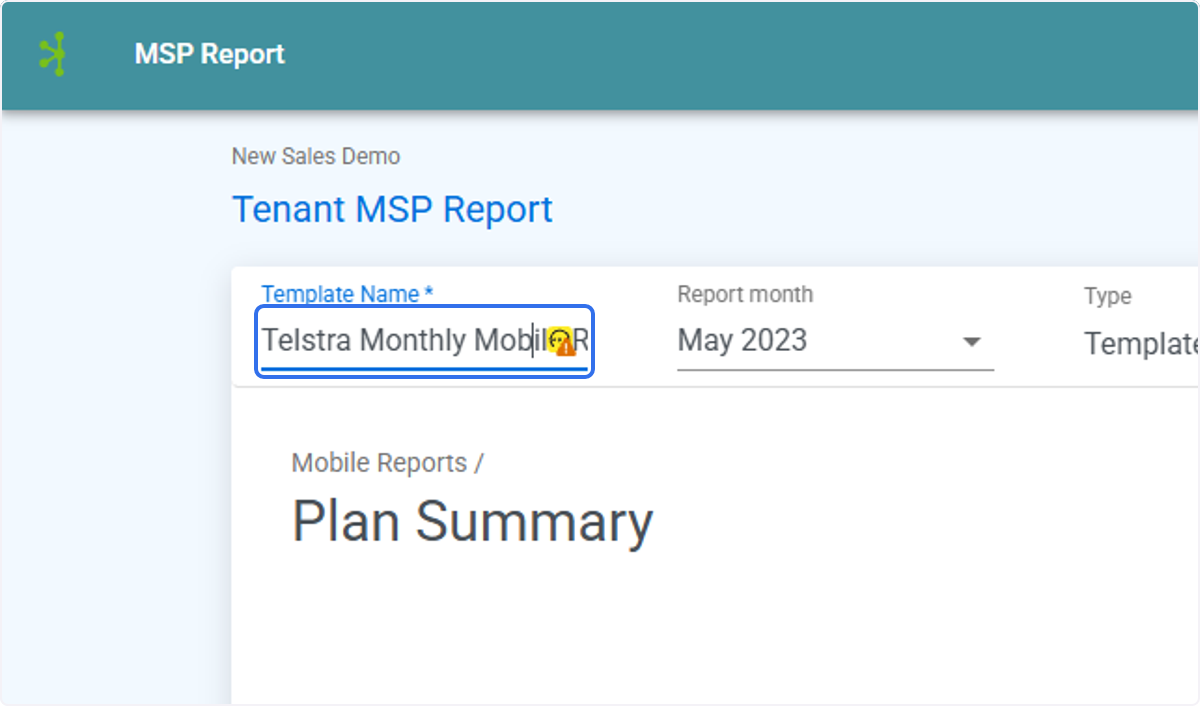
Select the relevant Report Month

Review the Reports and add relevant commentary
EG; Top 20 Potentially Redundant Services report

Add your commentary in the text box beneath each report

Click on Save once all commentary has been added.
You can SAVE and decide to PUBLISH at a later date.

Click on Publish
Once your select PUBLISH the report is LIVE in the Tenant portal and can be viewed by the customer.

Published Reports
The Report will now appear in the Published Reports list
